 Brightstreet Group
IRIS Data to Google Big Query - InterSystems Cloud SQL via Dataflow

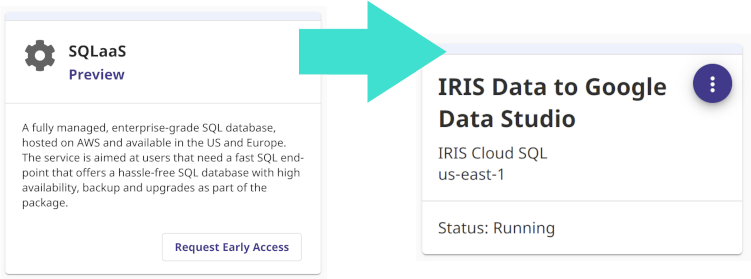
How to include IRIS Data into your Google Big Query Data Warehouse and in your Data Studio data explorations. In this article we will be using Google Cloud Dataflow to connect to our InterSystems Cloud SQL Service and build a job to persist the results of an IRIS query in Big Query on an interval.
If you were lucky enough to get access to Cloud SQL at Global Summit 2022 as mentioned in “InterSystems IRIS: What’s New, What’s Next”, it makes the example a snap, but you can pull this off with any publicly or VPC accessible listener you have provisioned instead.
Provision InterSystems Cloud SQL
Provision InterSystems Cloud SQL for temporary use and note your connectivity details:
Connection URL Example:
jdbc:IRIS://k8s-c5ce7068-a4244044-265532e16d-2be47d3d6962f6cc.elb.us-east-1.amazonaws.com:1972/USERCredentials:
SQLAdmin / Testing12!Driver Class:
com.intersystems.jdbc.IRISDriver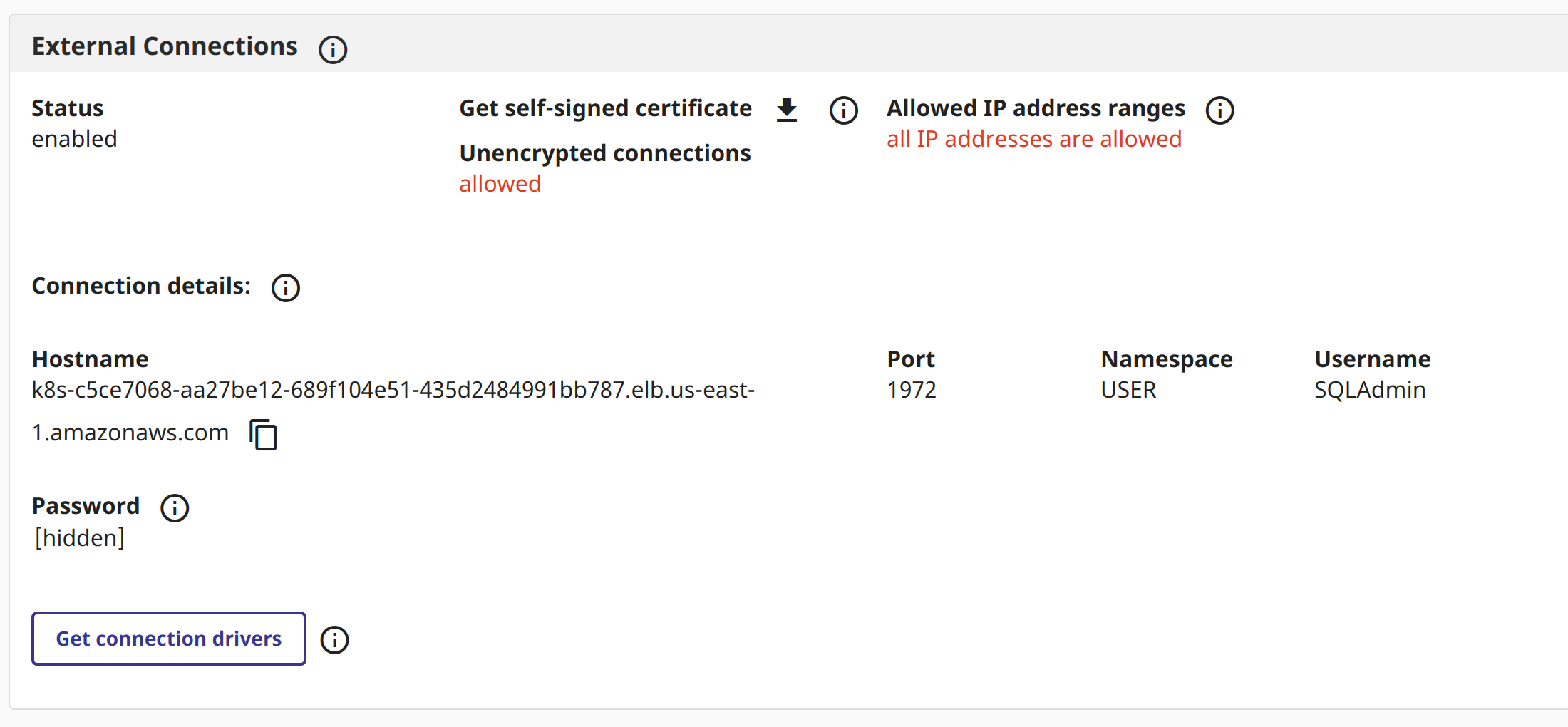
Setup Google Cloud Platform
1. Provision a GCP Project
gcloud projects create iris-2-datastudio --set-as-default2. Enable APIs
Enable Big Query, Dataflow, and Cloud Storage:
gcloud services enable bigquery.googleapis.com
gcloud services enable dataflow.googleapis.com
gcloud services enable storage.googleapis.com
3. Create a Cloud Storage Bucket
gsutil mb gs://iris-2-datastudio4. Upload the JDBC Driver
Upload the latest InterSystems JDBC driver to the root of the bucket:
wget https://github.com/intersystems-community/iris-driver-distribution/raw/main/intersystems-jdbc-3.3.0.jar
gsutil cp intersystems-jdbc-3.3.0.jar gs://iris-2-datastudio
5. Create a Big Query Dataset
bq --location=us mk \
  --dataset \
  --description "sqlaas to big query" \
  iris-2-datastudio:irisdata
6. Create a Big Query Destination Table
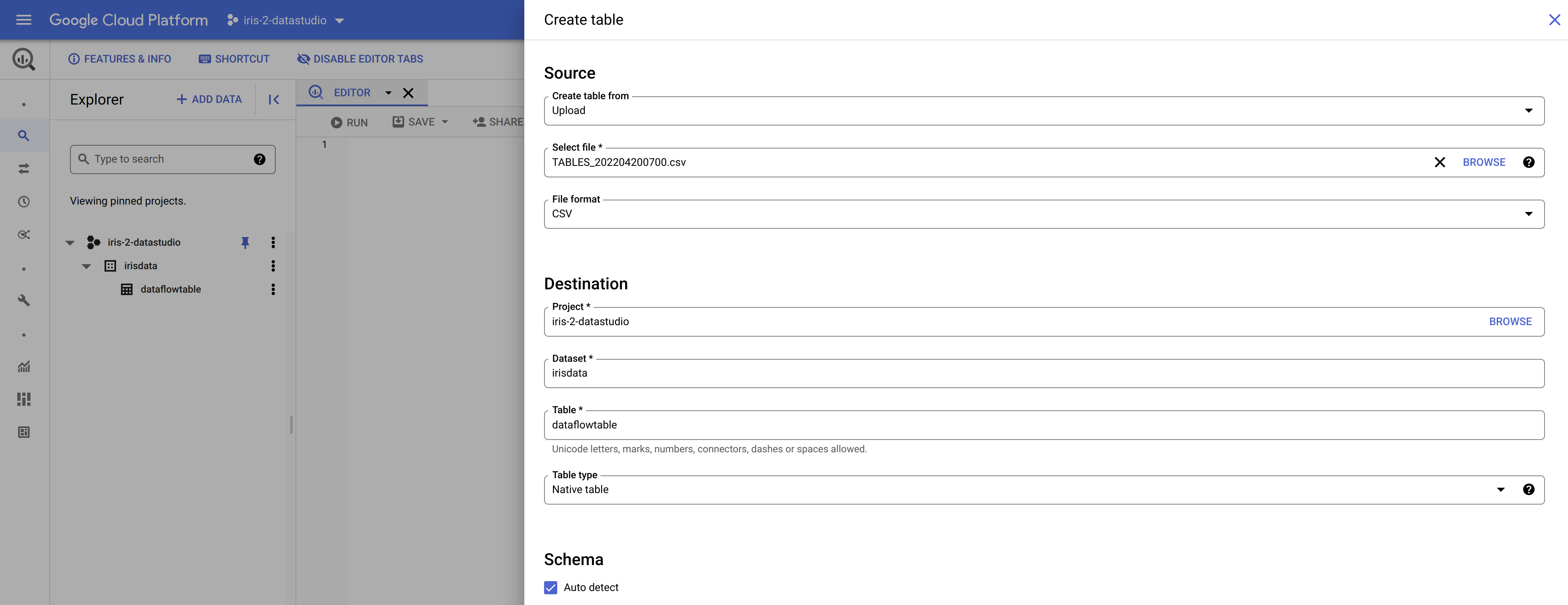
Big Query can create tables on the fly if you supply a schema, but for this template, it’s better to establish the table beforehand. You can export a CSV from your IRIS Database using a tool like DBeaver and use the “Create Table” dialog in the GCP console to auto-generate the schema from that CSV.
Google Dataflow Job
Now we are ready to execute the job to read our InterSystems IRIS data and ingest it into Google Big Query.
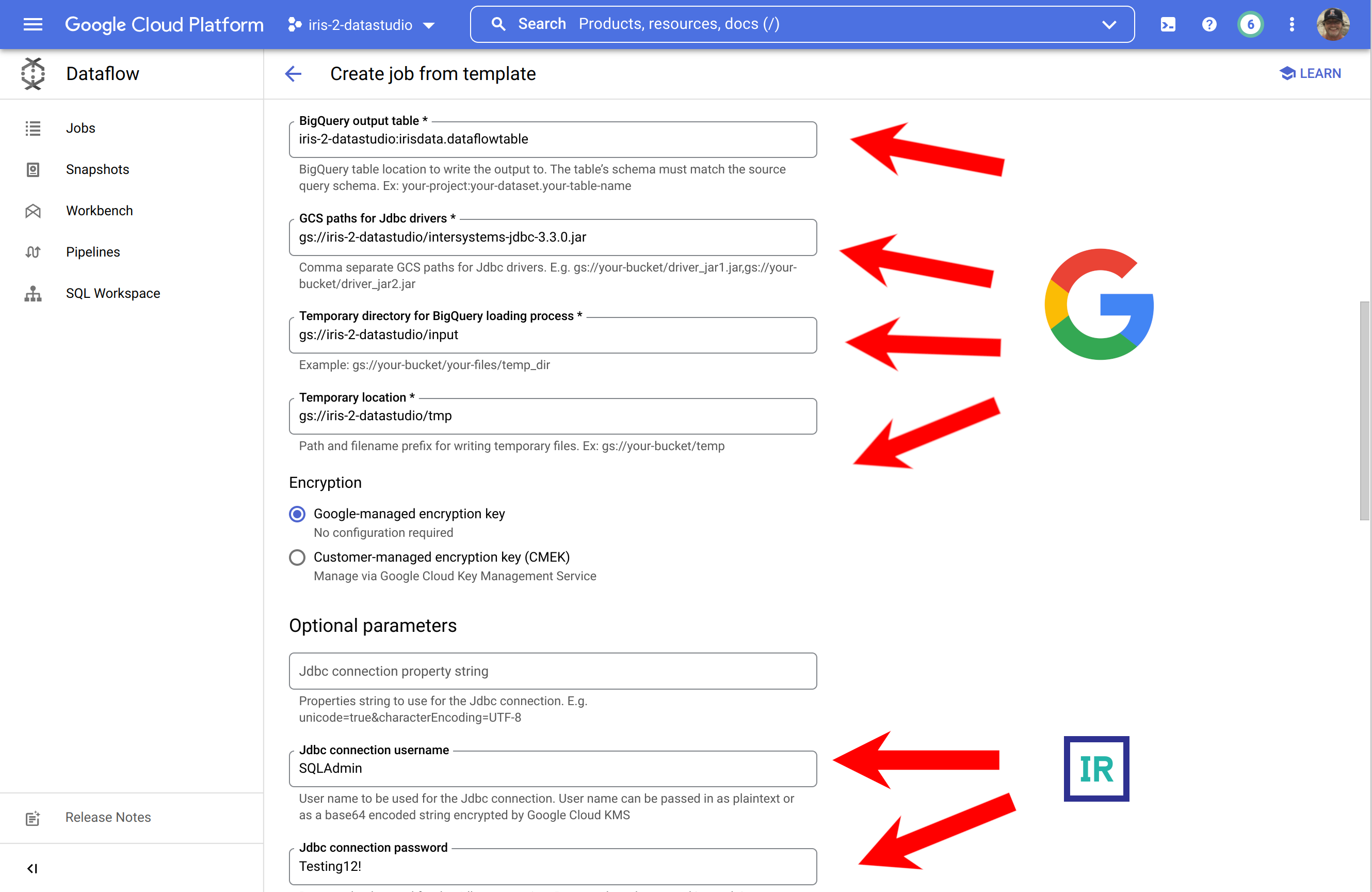
In the Google Cloud Console, head over to Dataflow and select “Create Job from Template”.

Fill out the form with the generated prerequisites:
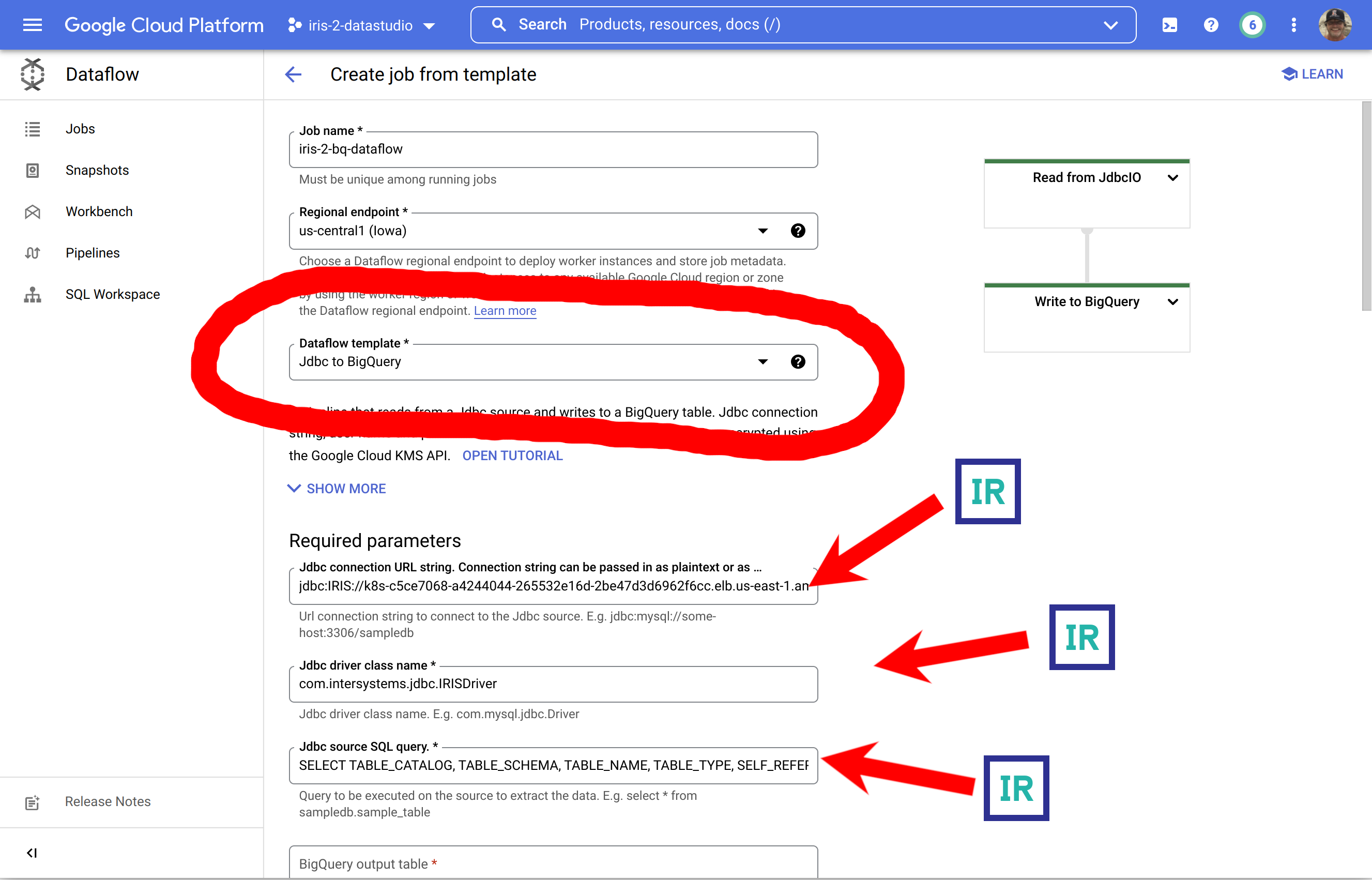 … and supply your credentials for IRIS at the bottom:
Alternate: CLI Route
For those who prefer the CLI, here is the command to run the job:
gcloud dataflow jobs run iris-2-bq-dataflow \
  --gcs-location gs://dataflow-templates-us-central1/latest/Jdbc_to_BigQuery \
  --region us-central1 \
  --num-workers 2 \
  --staging-location gs://iris-2-datastudio/tmp \
  --parameters \
connectionURL=jdbc:IRIS://your-host:1972/USER, \
driverClassName=com.intersystems.jdbc.IRISDriver, \
query="SELECT * FROM INFORMATION_SCHEMA.TABLES;", \
outputTable=iris-2-datastudio:irisdata.dataflowtable, \
driverJars=gs://iris-2-datastudio/intersystems-jdbc-3.3.0.jar, \
bigQueryLoadingTemporaryDirectory=gs://iris-2-datastudio/input, \
username=SQLAdmin, \
password=Testing12!
Results
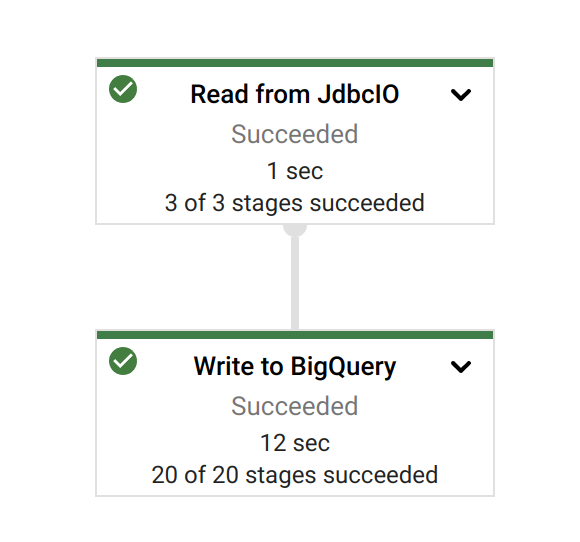
Once the job is kicked off, you can monitor its progress in the Dataflow console.
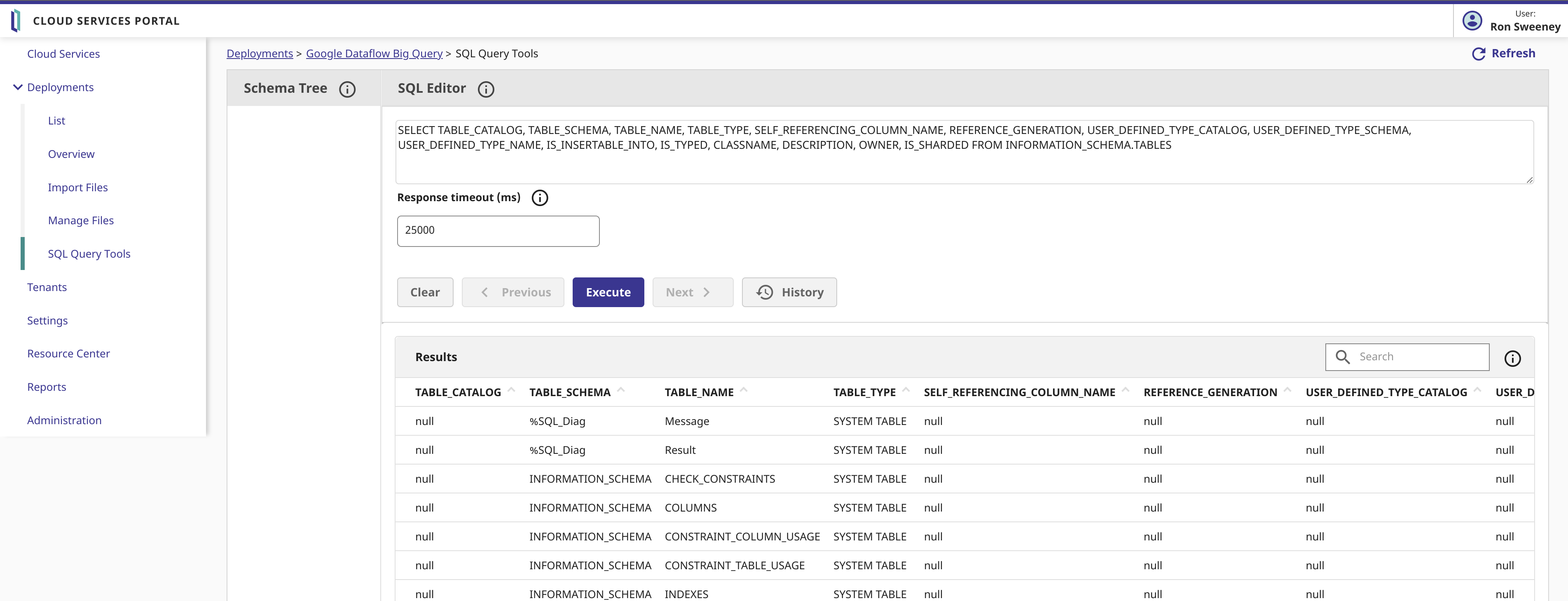
Source Data in IRIS Cloud SQL:
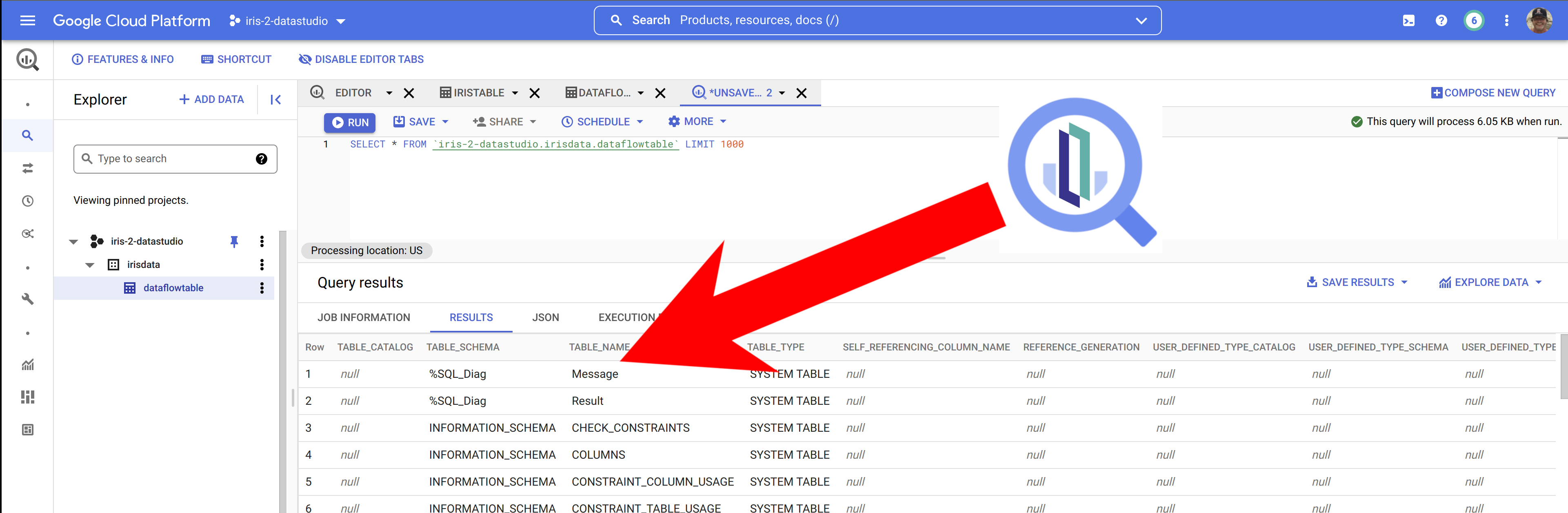
Inspected Results in Big Query:
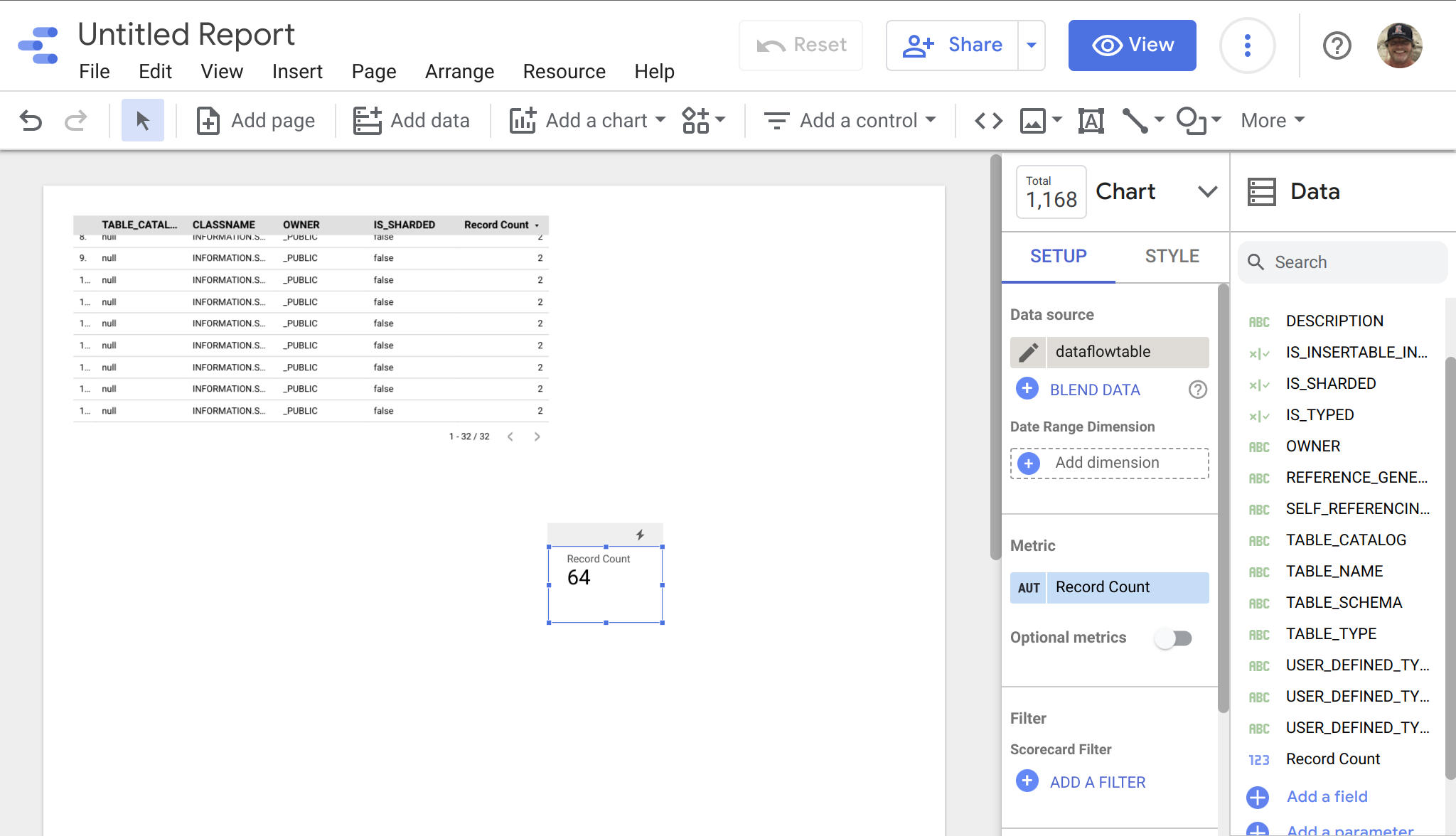
Visualization in Data Studio:
Once the data is in Big Query, it is trivial to include it into Data Studio.
💡 This article is considered as InterSystems Data Platform Best Practice.